Photoshop Backgrounds, Patterns & Textures on CD

Your cart: 0 item(s)
$0.00

Beyond Posterization

By Rick Wetzel

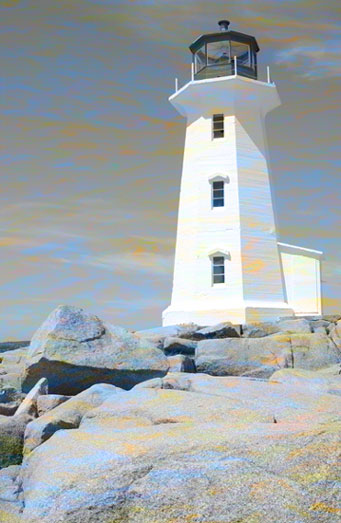
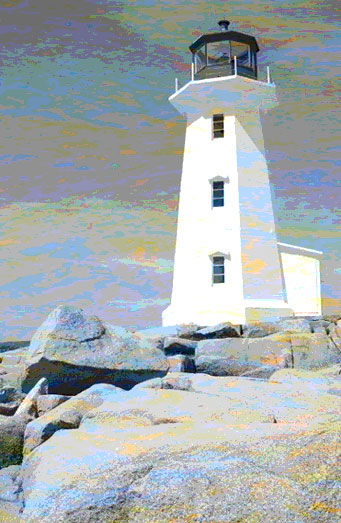
At a recent seminar, I was asked if I had any "wild" backgrounds. I suggested an unconventional technique using an adjustment layer, and a photographic background. If you experiment with different backgrounds you can achieve some fantastic results.


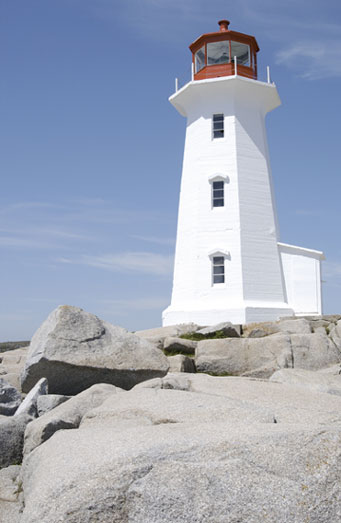
In this example, I took a lighthouse from AbleStock.com and tried out my suggestion.

Step 1

Open your photo of choice in Photoshop.

STEP 2

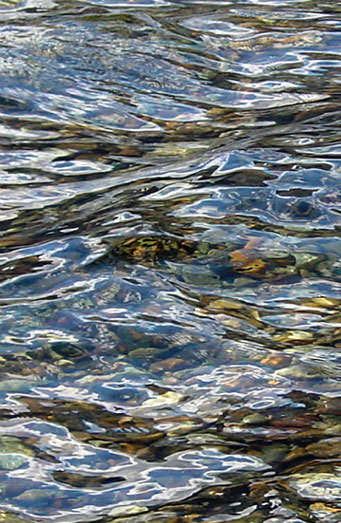
Copy and paste a background over your original photo. Here, I have selected an image that ordinarily I wouldn't even considered. But sometimes, that's exactly what is needed. Here I used an image from the Patterns & Textures from Yellowstone collection.


STEP 3

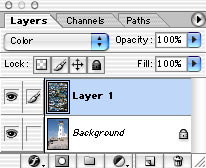
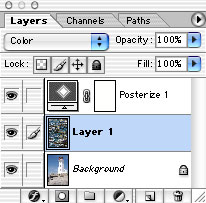
Open a new background and scale it to the approximate size of your other photo. Select color from the blending mode pull down menu.

STEP 4

Create an adjustment layer. Select Layer>New Adjustment Layer>Posterize from the menubar. I chose 8 levels.

If you turn Layer 1 off and on, you can see quickly what effect the background has on the posterization technique.

©2003, Wetzel & Company, Inc.